-
Shop
- Adidas
- Advanced Technologies
- Armani
- Bags
- Best-Sellers
- Birkenstock
- Boss
- Calvin Klein
- Car Accessories
- Crocs
- Dating & Social Skills
- Digital Resources
- Budgeting & Saving
- Emotional Intelligence
- Entrepreneurship & Business Growth
- Financial Independence
- Financial Mindset & Psychology
- Goal Setting
- Leadership
- Mindfulness
- Motivation
- Positive Thinking
- Productivity
- Self Confidence
- Sleep Improvement
- Stress Management & Relaxation
- Yoga & Mind-Body Practices
- Dr. Martens
- Drones
- Education & Learning
- Family & Parenting
- Fashion
- Fashion Accessories
- Financial Education
- Furniture
- Gadgets
- Health & Beauty
- Health & Wellness
- Home & Garden
- Home Decor
- Home Supplies
- Kids & Babies
- Lighting
- Massagers
- Mindset
- New Balance
- Nike
- Patio, Lawn & Garden
- Personal Growth
- Pet Care
- Pet Supplies
- Pets
- Shoes
- Sport & Outdoors
- Summer 2025 Fashion Collection
- Sunglasses
- Super Deals
- Timberland
- Tommy Hilfiger
- Travel
- Vans
- Wealth
- Winter Fashion
- Women’s Wellness & Lifestyle
- YouTube Shorts Best-Sellers
USB-C & XLR Dynamic Gaming Mic with RGB + Noise Cut
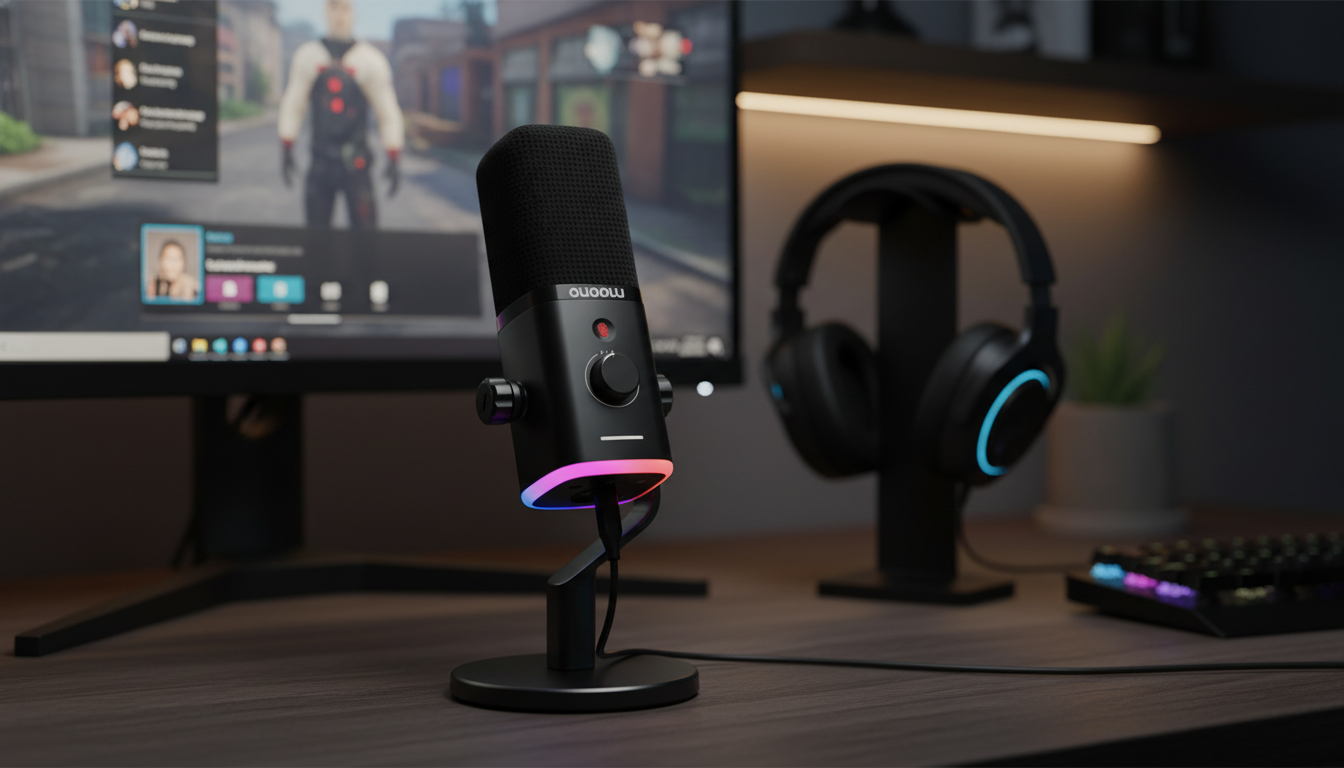
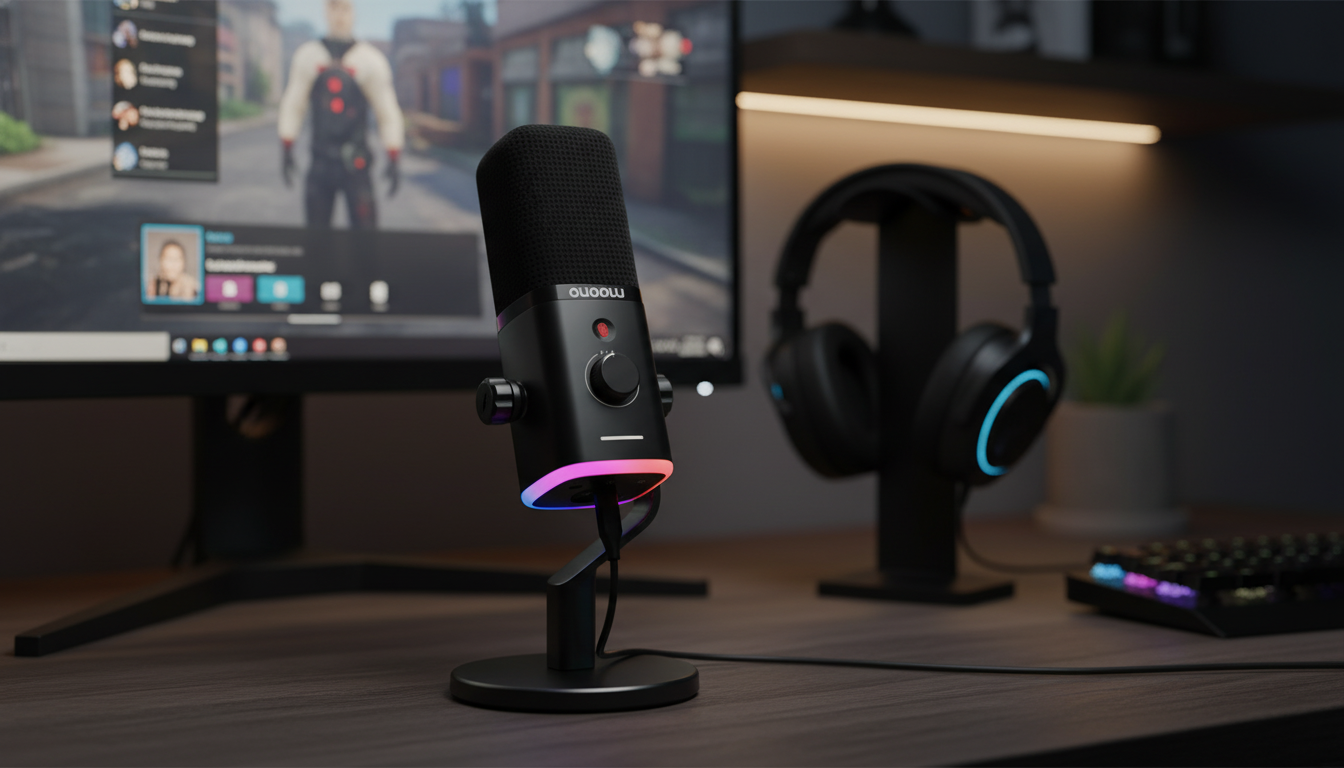
Dynamic USB-C & XLR Gaming Microphone with RGB and Noise Reduction
A dual-connection dynamic microphone can simplify a gaming or streaming setup by working as a plug-and-play USB-C mic today and a mixer-ready XLR mic later. The Dynamic USB-C & XLR Gaming Microphone with RGB and Noise Reduction pairs a dynamic capsule with noise reduction and RGB lighting, aiming for clearer voice capture in typical desk environments—keyboard clicks, PC fans, and room reflections—while keeping setup straightforward for console, PC, and creator workflows. For more guidance, see OneOdio Solocaster – Reviews – Head-Fi.
What this microphone is built for
This style of mic is designed around one core goal: get a focused voice sound without requiring a treated room or a complicated audio chain on day one. For further reading, see Fosi Audio K7 Gaming HiFi Headphone DAC Amp – Reviews – Head-Fi.
- Dynamic capsule voicing: Dynamic mics tend to be more forgiving in everyday rooms than many very sensitive condenser mics, especially when used up close.
- Two connection paths: USB-C for direct connection to computers (and supported devices), plus XLR for audio interfaces and mixers when you’re ready to expand.
- Noise reduction tools: Helpful for reducing distractions and improving intelligibility in streams, team chat, and recordings.
- RGB lighting: Adds desk aesthetic and can provide an at-a-glance cue during sessions depending on the mic’s lighting behavior.
If you want a deeper overview of how dynamic mics compare to condensers, Shure’s guide is a solid reference: Dynamic vs. Condenser Microphones.
Sound capture and noise control
With a dynamic mic, results usually come down to technique and placement more than “maxing out” processing.
- Use close-mic technique: A starting point is 2–6 inches from your mouth. Closer placement increases presence and naturally reduces room sound.
- Make the mic closer to you than to noise sources: Put the mic near your mouth and farther from keyboards, PC exhaust fans, or console vents.
- Reduce plosives by changing angle: Speak slightly across the grille rather than straight into it. If you’re still getting “P” or “B” blasts, add a pop filter if one isn’t included.
- Go easy on onboard noise reduction: Start conservative. Aggressive settings can make a voice sound watery, phasey, or overly gated.
USB-C mode: fast setup for gaming, chat, and streaming
USB-C is the “get started tonight” option: fewer devices, fewer cables, and typically no extra drivers beyond standard OS audio support.
- Connect and select: Plug in, then choose the microphone as your input device in your operating system and in apps like Discord or OBS.
- Set healthy levels (avoid clipping): Aim for strong volume without hitting the top of the meter. If you’re constantly peaking, lower the input level first instead of fixing it later with software.
- Use monitoring when available: If the mic supports headphone monitoring, it helps you keep consistent distance and avoid drifting off-axis—both common causes of “randomly quiet” audio.
- Reduce handling and cable noise: Keep slack controlled and avoid tugging the cable during play. If possible, route the USB cable away from power bricks or adapters.
For app-level troubleshooting, these official resources can help with common setup pitfalls: Discord Voice and Video Troubleshooting and the OBS Studio Wiki.
XLR mode: upgrade path to mixers and interfaces
XLR is about expandability: better gain staging options, hardware processing, and easier integration with multi-source setups.
- More control over your sound: With an audio interface or mixer, you can shape tone using EQ, add compression for steadier volume, or route multiple inputs cleanly.
- Plan for dynamic-mic gain needs: Dynamic microphones often require more clean gain than condensers. An interface with good preamp headroom helps keep hiss low at normal speaking levels.
- Gain staging basics: Speak at your real streaming volume while adjusting gain and watching meters. Fine-tune final loudness in your streaming/recording software afterward.
- Use balanced cables thoughtfully: Choose balanced XLR cables and keep them away from power adapters to reduce hum and interference.
RGB lighting and desk usability
RGB can be purely aesthetic, but it can also support usability—especially if it indicates mute status or activity.
Quick placement guide for clearer voice
Specs and at-a-glance comparison of connection options
| Feature | USB-C | XLR |
|---|---|---|
| Connection target | PC/laptop and supported devices | Audio interface or mixer |
| Setup time | Fast (plug-and-select) | Moderate (interface + gain staging) |
| Expandability | Limited to software routing | High (multi-input, hardware processing) |
| Portability | High | Depends on interface/mixer |
| Control options | App/OS controls, possible onboard controls | Preamp gain, hardware EQ/compression, routing |
When this mic makes the most sense
More in-stock picks
- Women’s Genuine Leather Boston Shoulder Bag
- Bohemia Plush Velvet Sofa Cover
- 650W Electric Airless Paint Sprayer
FAQ
Does a dynamic microphone reduce background noise on its own?
It can help, because dynamic mics are often less sensitive than condensers and benefit from close-mic placement, but it doesn’t magically remove noise. Background control comes from a mix of mic directionality, distance, room acoustics, and (optional) noise reduction processing.
Can USB-C and XLR be used at the same time?
Many dual-output microphones are intended for one connection at a time, or they have specific rules for how signals are routed. Check the product’s manual and avoid simultaneous connections unless it’s explicitly supported.
What settings should be adjusted first for clearer voice in Discord or OBS?
Start with mic placement and input level so you’re not clipping, then use gentle noise suppression and a conservative noise gate if needed. Avoid excessive boosts that raise background noise along with your voice, and monitor your levels while speaking at your real volume.
Recommended for you


Was this article helpful?
Yes
No






Leave a comment